
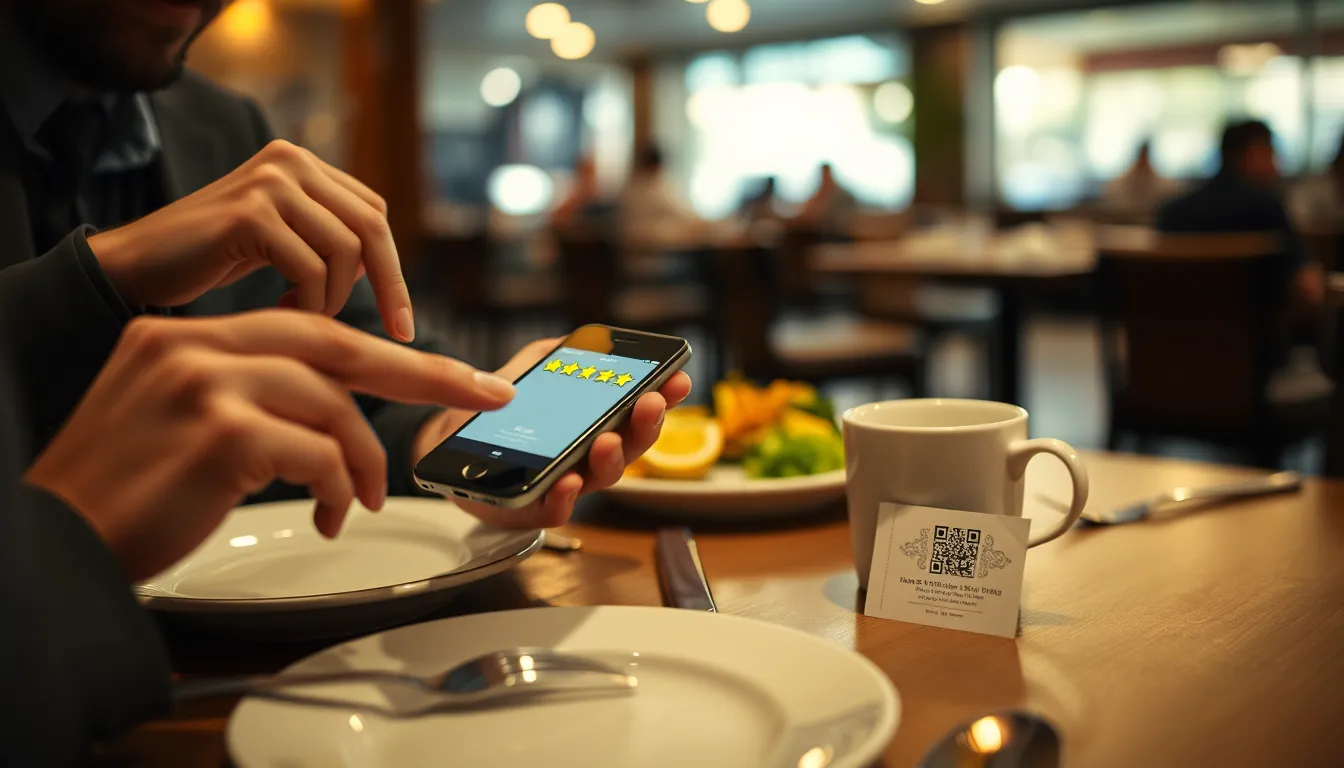
When something goes wrong, most customers don’t complain. They pay, leave and quietly decide not to come back. Some of them tell the internet instead. Either way, you find out too late to fix the cold coffee, the long wait or the rude phone call.
A feedback QR code gives customers an easy, private way to tell you first. It sits on the table or the counter. They scan, tap a star rating, pick what stood out and add a comment if they want to. It takes about 20 seconds, and it reaches you, not the public.
What a good feedback QR asks
- A star rating. One tap, so even people in a hurry give you a signal.
- What stood out. Four to six topic tags, like Food, Service or Wait time. Tags are faster than typing and easy to count.
- An optional comment. Where the useful detail lives: “Table 4 waited 25 minutes for the bill.”
That’s it. Every question you add after these three loses respondents. If you need a longer survey for a specific project, use a form QR code instead.
Free tool · try it here
Preview your feedback QR
Choose what to ask about. Guests rate, tap a topic and leave a comment.
Private Feedback · Ratings and comments land in your inbox, instead of a survey tool.
How was your visit?
★★★★☆
What stood out?
Anything we could do better?
Feedback comes to you privately. Every guest can also be offered your Google review link after rating.
Create my feedback QRTopic tags that work, by business
| Business | Tags to ask about |
|---|---|
| Restaurant or café | Food, Service, Ambience, Value, Wait time |
| Salon or spa | Result, Stylist, Cleanliness, Booking, Price |
| Hotel or homestay | Room, Cleanliness, Staff, Breakfast, Wi-Fi |
| Clinic | Waiting time, Doctor, Front desk, Cleanliness |
| Retail shop | Product range, Staff help, Checkout, Price |
| Gym or studio | Classes, Trainers, Equipment, Changing rooms |
Private feedback and Google reviews, the honest way
It’s tempting to set things up so that only happy customers are sent to Google and unhappy ones stay private. That practice is called review gating, and Google’s review policy prohibits it. Businesses caught doing it can have reviews removed.
HoldQR does it the honest way. Every customer can leave private feedback, and after they rate, every customer is offered your Google review link as an optional next step, whatever their score. You still hear about problems first, and the happy customers who want to say so publicly have a one-tap way to do it. For a review-only QR, read how to create a Google review QR code.
Set up your feedback QR
- Open Private Feedback and add your business name.
- Choose four to six topic tags that match what customers experience.
- Paste your Google review link (optional) so it can be offered after the rating.
- Scan it yourself and leave a test rating.
- Download the QR with a frame like RATE YOUR VISIT and print it on table cards, receipts or a counter stand.
Where and when to ask
Ask at the end of the experience, not the start. The best spots are next to the bill, on the checkout counter, on the receipt, inside the hotel room and on takeaway bags. A staff member saying “we read every one of these” next to the code makes a bigger difference than any design.
For restaurants, combine it with your table QR strategy in QR codes for restaurants, and see where to put a review QR code for placement ideas that also work for feedback.
Turn feedback into fixes
- Read comments daily, count tags weekly. Comments tell you what happened; tags tell you how often.
- Reply to complaints within a day when you have contact details. A fast, human reply often wins the customer back.
- Use one QR per location or shift to see which branch, floor or team gets which comments.
- Close the loop in public. “You told us the wait was too long, so we added a second till” on a sign tells customers you listen.
Frequently asked questions
How do I create a QR code for customer feedback?
Create a Private Feedback QR app, choose the topics you want to ask about (for example Food, Service, Value), optionally add your Google review link, then download and print the QR code. Customers scan, give a star rating, tap topics and leave a comment.
Can I send only happy customers to Google reviews?
No, and you shouldn’t try. Showing the review link only to people who rate you highly is called review gating, and it is against Google’s review policy. HoldQR offers your Google review link to every customer after they rate, as an optional next step.
Is the feedback anonymous?
By default, yes: customers can rate and comment without leaving contact details. You can ask for an email or phone number if you want to reply to complaints.
Where should I put a feedback QR code?
Where customers pause after the experience: on the table with the bill, at the checkout, in the room, on the receipt or on takeaway packaging. Avoid places people pass before they have been served.
How will I see the feedback?
Ratings and comments appear in your HoldQR dashboard. You get an email when new feedback arrives (grouped, at most one every 15 minutes), and you can export to CSV or sync to Google Sheets.